
IPTV Not Working? Error Codes & Fixes (2026 Guide)
Last updated: · 11 min read · Playlist IPTV
Works on
TL;DR: 90% of IPTV errors are one of five things: wrong login details (often a hidden space), an expired or blocked account, too many devices connected, an ISP blocking the stream, or a dead playlist link. Work through the fixes below in order — don't keep reinstalling the app, reinstalling never fixes account or network problems.
The 30-second triage: ask yourself 3 questions#
- Does it work on mobile data (Wi-Fi off)? If yes → your home internet/ISP is blocking it, not your account. Jump to ISP blocking.
- Did it work yesterday with the same details? If yes → something changed on the network or provider side (expired account, provider server move, DNS issue). Jump to sudden failures.
- What is the exact message? Match it below — the fix is different for "Login failed" vs "Playlist is empty" vs endless buffering.
"Login failed" / "Invalid username or password" (Xtream Codes)#
This is the most common error and almost every app shows the same generic message even when the real cause is different. Check in this order:
- Hidden spaces. The #1 cause. Delete the username, password and server URL and re-type them by hand. On Firestick the keyboard adds a space after every "." — check the server URL for a trailing space.
- Server URL format. It must be exactly like your provider gave it:
http://server.example.com:8080— includinghttp://orhttps://and the port number (:8080). Don't guess, don't add/cor extra paths. - http vs https. If your provider gave
http://, don't change it tohttps://— it will fail. - Account expired. Log in to your buyer dashboard and check the subscription status. If it's expired, renew it — no app setting fixes an expired account.
- Account blocked. Too many wrong password attempts or a terms violation can get a line blocked. Only your provider can unblock it.
- Maximum connections reached. Your plan allows a limited number of simultaneous streams. Close the app on your other devices and try again. (If you need more screens, that's what separate accounts are for — quantity at checkout means separate accounts.)
- ISP or provider-side block. If the same details work on mobile data but not on home Wi-Fi, it's your ISP blocking the server — see ISP blocking. Rarely, the provider itself locks your line to one ISP — then only the provider can reset it.
"Your account has expired"#
Your subscription reached its end date. Renew from your buyer dashboard — renewal gives you a new full account with new login credentials. Nothing in the app can extend it.
"Playlist failed to load" / "Unable to parse playlist" (M3U)#
- Re-copy the full link. Open your original delivery message and copy the entire M3U URL again — most failures are a truncated or incomplete link. Never paste the provider's homepage instead of the playlist URL.
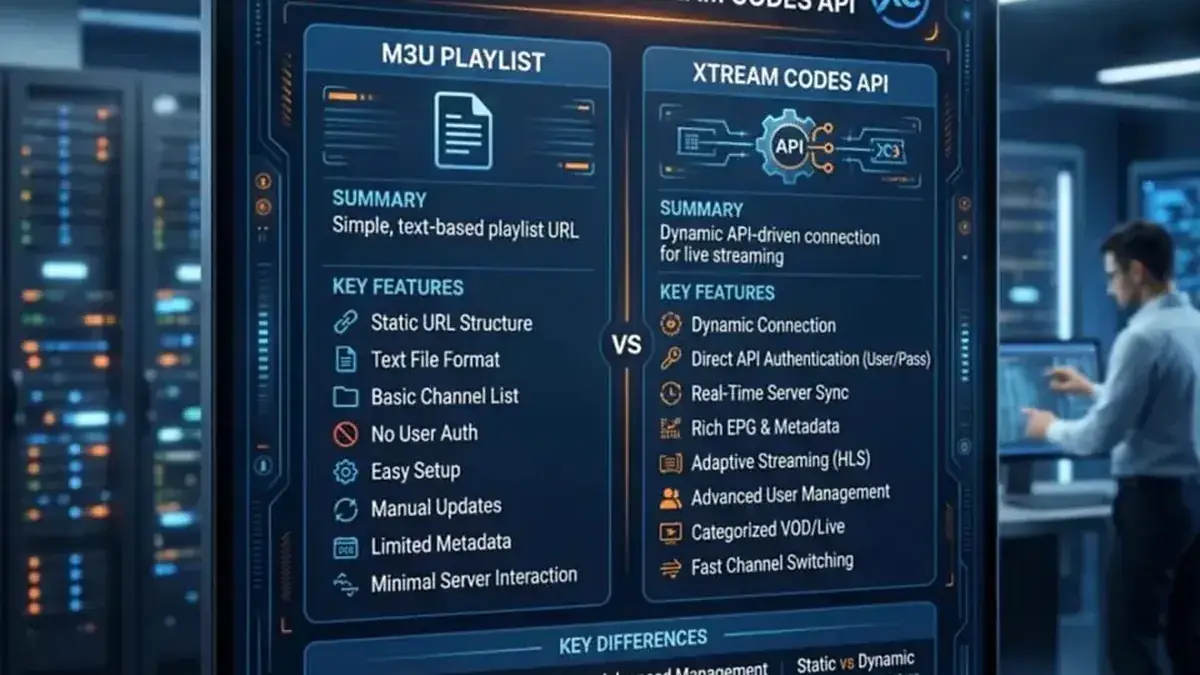
- Test it in a browser. Paste the M3U URL into a phone/PC browser. If it downloads a file or shows text starting with
#EXTM3U, the link is fine and the problem is in the app. If the browser shows an error, the link itself is dead — ask for a fresh one. - Test it in VLC. VLC is the fastest way to check a playlist: Media → Open Network Stream → paste the URL. If VLC plays it, your link works.
- HTTP 404 usually means the provider rotated/changed the playlist URL — request a new link. HTTP 403 usually means an expired line or a blocked IP — contact support.
- "Playlist is empty" but the link tests fine → clear the app cache (not Clear Data) and re-add the playlist.
It worked yesterday and stopped today#
- Check your subscription status in the buyer dashboard first (expired is the most common "sudden" cause).
- Provider server move. Providers sometimes migrate servers or change portal URLs. Your unchanged credentials then fail with "login failed" or 404s. If nothing changed on your side and it broke overnight, wait a few hours, reboot your router and device, and if it persists past ~24 hours contact support for the new server details.
- Stale DNS cache. Your router or ISP may still point to the old server. Temporarily switching to a fast public DNS like
1.1.1.1often picks up the new address sooner — see our DNS guide. - Don't reinstall repeatedly. Reinstalling does not fix expired accounts, dead links, or server-side issues.
TiviMate#
- "Failed to update playlist": Settings → force-stop the app → Clear Cache (never Clear Data — that wipes your playlists) → restart. If it persists: delete and re-add the playlist, preferably using Xtream Codes login instead of M3U — it refreshes far more reliably.
- Parsing stuck / refresh never finishes: huge VOD libraries choke the refresh. Edit the playlist and disable VOD content, then refresh again.
- Buffering / spinning circle: Settings → Player → Buffer Size → Very Large. On 4K stutter, check the decoder: ExoPlayer with hardware decoding on modern devices.
- EPG shows "No Information": Settings → EPG → Clear EPG → Update EPG. Still blank? Paste your EPG URL in a browser — if it doesn't download XML, the feed link itself is broken.
- EPG times are wrong by hours: almost never a TiviMate bug. First confirm your device clock/timezone is correct, then TiviMate → Settings → Playlists → your playlist → EPG → Time Shift: if programs show 3 hours early, set +3; 3 hours late → -3 (whole-hour steps). Wrong times on one channel only → long-press the channel → Assign EPG / Map Channel.
- Slow EPG: reduce "Past days to keep EPG" to 2–3 days — giant EPG files choke small devices.
XCIPTV Player#
- Exact error: "Login failed! Please check your Server address, Username and Password." — work through the login checklist above.
- The server URL must include
http://(orhttps://) and the port. - Changing server? XCIPTV ties its local data to the login session — there is no "edit server URL" inside a profile. You must log out / clear data and set it up fresh (favorites will be wiped, so export them if the app allows).
IBO Player#
- Playlist not loading: re-check the M3U link or Xtream credentials, test the link in VLC, and ask for a fresh link if the browser test fails.
- "MAC Address Invalid": type the Device ID exactly as shown in the app — watch out for O vs 0, include colons and leading zeros, no spaces.
- "Expired App": the free trial is ~7 days per device, then a one-time per-device activation is required.
- Empty EPG with M3U login: enter the provider's EPG URL manually (it must end in
.xml). - App freezes on huge lists: very large playlists can freeze low-memory TVs — ask your provider for a smaller list.
Flix IPTV#
- Playlist not loading: expired subscription is the most common cause, then typos in the server URL.
- Upload via the portal: your playlist is linked to your TV's MAC — enter the MAC exactly (colons included) at the Flix "My List" portal, paste the full M3U, then restart the app and refresh.
- Activation: 7-day free trial, then a one-time per-device fee (each TV needs its own). If it still shows "Trial" after paying: fully close and reopen the app (not just back out), wait 5–10 minutes, then contact Flix support with your receipt and MAC.
- Missing EPG: the guide loads only with Xtream Codes login, not with a bare M3U link.
Smart IPTV (SIPTV)#
- "Check playlist URL": on the SIPTV portal, delete the playlist registered to your MAC first, then re-upload it fresh. Tick "Keep Online" (registration can lapse after a few days otherwise) and use the M3U link, not a static file, so it auto-updates.
- MAC changes after restart (Android 10+): Wi-Fi settings → privacy → "Use device MAC" instead of randomized MAC.
- Slow channel switching / DNS errors: set the TV's DNS manually to
1.1.1.1(see our DNS guide). - Note: Samsung removed SIPTV from its app store — existing installs still work.
Kodi (PVR IPTV Simple Client)#
- "Unable to connect": 1) check your network (open a browser, restart the router for 60 seconds), 2) re-type the M3U URL by hand — pasted links often carry hidden characters, 3) confirm
http://vshttps://. - Empty channel list: in the add-on settings, switch the location between Remote Path and Local Path — a mismatch here is the classic cause.
- EPG: set the XMLTV URL in EPG Settings, then restart Kodi so the PVR manager re-imports.
VLC#
- "VLC is unable to open the MRL": 1) paste the URL in a browser to verify the source works, 2) update VLC (Help → Check for Updates), 3) allow VLC through your firewall/antivirus, 4) Tools → Preferences → Reset Preferences, 5) increase caching under Input/Codecs (e.g. 1000 ms).
- If the stream plays in a browser but not in VLC, the link itself may rely on web-only tricks — use the app from your setup guide instead.
Perfect Player#
- Playlist won't load: verify the M3U URL, restart the app, then Settings → Advanced → Clear Cache. If the loading bar stops partway, the provider likely changed the playlist URL — get a fresh one.
- No EPG: the URL must be XMLTV or JTV format; refresh with Settings → Advanced → Clear EPG Cache, then restart.
- Stuttering: Settings → Playback → Decoder — Hardware on modern devices, Software if you get glitches; increase Buffer Size.
Buffering: diagnose first, then fix#
Don't change everything at once. Match your symptom:
- Every channel buffers → your home network, device or account. Test with an Ethernet cable and on a second device.
- One channel buffers → that feed/source is the problem. Try another channel.
- Only in the evening → congestion or ISP throttling. Test the same channel on mobile data — if it's smooth there, your ISP is shaping IPTV traffic.
- 4K fails but HD works → bandwidth or decoder. Use wired Ethernet and enable hardware decoding.
- Works with VPN, fails without → ISP routing/throttling issue.
- Fails with VPN, works without → the VPN is the problem (extra latency, or the provider blocks that VPN exit).
Fixes in order: Ethernet cable (biggest single upgrade) → 5 GHz Wi-Fi instead of 2.4 → restart router and device → hardware decoding on → bigger buffer (TiviMate: Very Large) → clear app cache → VPN only if you confirmed throttling → contact support last. Note: a VPN adds 10–20% overhead and can make buffering *worse* if the cause is local (Wi-Fi, weak device). It also can't fix an expired or blocked account.
ISP blocking: how to tell and what to do#
Some ISPs (notably in the UK, Italy, Spain and Canada) block IPTV servers — sometimes only during live sports events. The tell-tale signs:
- Works on mobile data but not on home Wi-Fi.
- Channels fail exactly during big matches, then recover after.
- "Cannot connect to server" / timeouts despite a fast speed test.
What actually helps: changing your DNS defeats DNS-level blocking and slow ISP resolvers (see our DNS guide) — it does not defeat IP-level blocking. A VPN bypasses ISP blocking entirely, but only use one if you've confirmed the ISP is the cause. If neither helps, the block may be on the provider's side — contact support.
When to contact support (and what to include)#
Contact support — don't keep guessing — when: your account shows expired/blocked in the dashboard, you hit maximum connections and no device is streaming, the provider changed the portal URL, or none of the fixes above worked. Always include: the exact error message, the app and device you're using, whether it works on mobile data, and your request/order ID (never your password).
Frequently Asked Questions
Why does my IPTV keep saying "Login failed"?
In 9 cases out of 10 it's a hidden trailing space in the username or password, or the server URL missing http:// and the port. Re-type all three fields by hand — don't paste.
Is buffering my internet or my IPTV provider?
Test on mobile data: if it's smooth there, your home ISP is throttling or blocking. If it buffers everywhere including mobile data, it's your device, Wi-Fi, or the source feed.
Will reinstalling the app fix my IPTV?
Almost never. Reinstalling doesn't fix expired accounts, dead playlist links, wrong logins or ISP blocks — it only wipes your settings. Diagnose first using the triage at the top of this guide.
My IPTV worked yesterday and stopped today — what changed?
Usually one of three things: your subscription expired, your provider moved servers (wait a few hours, reboot router), or your ISP started blocking (test on mobile data, try changing DNS).
Do I need a VPN for IPTV?
Only if you've confirmed ISP blocking or throttling — a VPN adds overhead and can make buffering worse when the real cause is local (Wi-Fi, weak device). It also can't fix expired or blocked accounts.
Related guides

Ready to watch? Get your IPTV subscription now.
Instant activation — M3U playlist + Xtream Codes login + EPG, delivered by email in minutes. Pay with Bitcoin.
Buy IPTV Subscription