
Change DNS for IPTV 2026: Fix Blocking & Buffering
Last updated: · 7 min read · Playlist IPTV
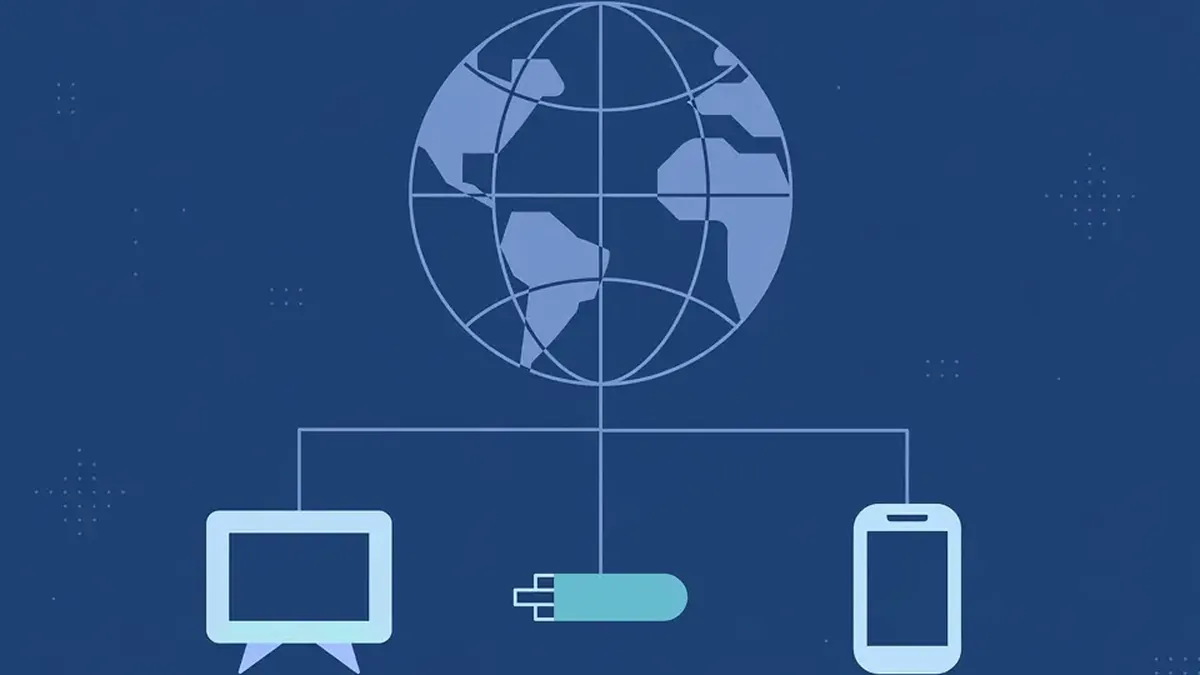
Works on
TL;DR: DNS is the internet's phone book — it turns server names into addresses. Some ISPs use their DNS to block or slow down IPTV. Switching to a fast public DNS (1.1.1.1 or 8.8.8.8) takes 2 minutes per device and fixes DNS-level blocking, slow EPG loading and some buffering. It can't fix IP-level blocks, expired accounts or dead links.
What DNS is (in plain language)#
Every time your IPTV app connects, it asks a DNS server: "what's the address of this server name?" Your ISP answers that question by default — and some ISPs answer it dishonestly for IPTV servers: they return a wrong address, a blocked page, or take so long that the app times out. Changing your DNS means asking a neutral, fast server instead. Nothing about your subscription changes; you're just using a better phone book.
When changing DNS helps — and when it doesn't#
It helps when: channels fail on home Wi-Fi but work on mobile data; the EPG loads slowly or not at all; you get "cannot connect to server" despite fast internet; problems started right after a provider server move (stale DNS cache).
It doesn't help when: your account is expired or blocked; the playlist link itself is dead (test in a browser); every device buffers even on mobile data (that's bandwidth/device); the ISP blocks by IP address rather than DNS (then only a VPN helps).
The best free DNS servers for IPTV#
- Cloudflare —
1.1.1.1/1.0.0.1: the fastest in most benchmarks, audited privacy policy, unfiltered (blocks nothing). Our default recommendation. - Google —
8.8.8.8/8.8.4.4: very reliable, huge infrastructure, weaker privacy (it's Google). - Quad9 —
9.9.9.9/149.112.112.112: Swiss non-profit, blocks known malicious domains by default, DNSSEC-validated.
A common pairing is Quad9 as primary and Cloudflare as secondary. Write down your current DNS values before changing anything, so you can revert.
Amazon Firestick / Fire TV#
Fire OS has no native DNS setting — that's why this trips up so many people. The workaround:
- Go to Settings → My Fire TV → About → Network and note your IP address and Gateway.
- Settings → Network → highlight your Wi-Fi → press the menu button (≡) → Forget network.
- Rejoin the Wi-Fi, enter the password, then choose Advanced.
- Enter: IP address (the one you noted), Gateway (the one you noted), Prefix length 24, DNS 1: 1.1.1.1, DNS 2: 1.0.0.1 → Connect.
- Verify: Settings → My Fire TV → About → Network should show the new DNS.
Easier alternative: change the DNS on your router (below) — it covers the Firestick and every other device at once, no per-device fiddling.
Android TV / Google TV#
- Settings → Network & Internet → select your connected Wi-Fi.
- IP settings → Static. (If "Static" is hidden: Forget the network, reconnect, open Advanced options during setup.)
- Enter IP address, Gateway, network prefix length (24 for most home networks), DNS 1: 1.1.1.1, DNS 2: 1.0.0.1.
- Save and restart the TV.
Android phone / tablet (Private DNS)#
- Settings → Network & Internet → Private DNS (may be under Advanced).
- Choose "Private DNS provider hostname".
- Enter the hostname (not the IP):
1dot1dot1dot1.cloudflare-dns.comfor Cloudflare, ordns.googlefor Google. - Save. This covers Wi-Fi and mobile data, system-wide.
Samsung Smart TV (Tizen)#
- Settings → General → Network → Network Status → IP Settings.
- DNS Setting → Enter Manually → DNS Server → type
1.1.1.1→ OK. - Restart the TV. (Samsung's own manuals suggest
8.8.8.8for video-app problems — either works.)
LG Smart TV (webOS)#
- Settings → All Settings → General → Network → Internet Connection.
- Select your connection → Edit (wired) or Advanced Wi-Fi Settings (Wi-Fi).
- Edit the DNS Server field → enter
1.1.1.1→ Connect. - Restart the TV. LG notes manual DNS can fix apps that disappear, show errors, or refuse to open.
iPhone / iPad#
- Settings → Wi-Fi → tap the ⓘ next to your network → Configure DNS → Manual.
- Delete the existing servers, add
1.1.1.1and1.0.0.1→ Save. - Repeat for each Wi-Fi network — iOS stores DNS per network.
- Limitation: iOS does not allow custom DNS on cellular data. For cellular, use the free Cloudflare WARP app instead.
Windows 10 / 11#
- Settings → Network & Internet → Wi-Fi (or Ethernet) → your active network.
- DNS server assignment → Edit → Manual → enable IPv4.
- Preferred DNS:
1.1.1.1, Alternate:1.0.0.1→ Save. - Close and reopen your browser/app.
macOS (Ventura and newer)#
- Apple menu → System Settings → Network → click your connected network → Details… → DNS.
- Click + and add
1.1.1.1and1.0.0.1(double-click to edit, − to remove) → OK. - Older macOS: System Preferences → Network → Advanced… → DNS tab.
Router level (best option for IPTV)#
Changing DNS on the router applies it to every device on your network at once — Firestick, Smart TVs, phones, everything, including apps with no DNS setting of their own. Log in to your router's admin page (usually 192.168.1.1 or 192.168.0.1), find the WAN/Internet or DHCP DNS fields, and set primary 1.1.1.1, secondary 1.0.0.1. Caution: a typo here can knock every device offline — test the DNS on one device first, then apply it router-wide once you're happy.
DNS propagation: what it is and when IPTV users should care#
Plain language: when a provider moves its servers, it updates its DNS records — but DNS servers around the world cache the old answer for a while. During that window, some users reach the new server and some still get sent to the dead one.
- Typical time: 5–30 minutes; average 1–2 hours; worst case up to 48 hours.
- How to check: sites like whatsmydns.net or dnschecker.org — enter the server domain, and green checks across countries mean the new address has propagated.
- When it matters for IPTV: only after a provider server migration or portal URL change. The symptom is distinctive: everything worked, nothing changed on your side, and suddenly login fails or the playlist 404s.
- What to do: wait it out; reboot your router and device (flushes stale cache); temporarily switch to
1.1.1.1, which usually picks up new records faster than ISP resolvers. If it persists past ~24 hours, contact support — the server details themselves may have changed.
Quick recap#
- DNS-level blocking and slow ISP resolvers are real and common — changing DNS is a legitimate 2-minute fix.
1.1.1.1/1.0.0.1(Cloudflare) is the best default;8.8.8.8/8.8.4.4(Google) and9.9.9.9(Quad9) are solid alternatives.- Router-level change covers all devices at once — ideal for Firestick, which has no native DNS setting.
- If DNS doesn't fix it, the cause is elsewhere: see our IPTV error codes & fixes guide or contact support with your exact error message.
Frequently Asked Questions
Will changing DNS affect my IPTV subscription?
No. DNS only changes how your device looks up server addresses — your subscription, login details and expiry are untouched.
Is 1.1.1.1 safe to use?
Yes. It's Cloudflare's public DNS — fast, unfiltered, and independently audited for privacy. It's our default recommendation for IPTV.
Why can't I change DNS directly on my Firestick?
Fire OS simply has no DNS setting. The workarounds are: static IP setup (above), changing DNS on your router (covers all devices), or using an app like Cloudflare WARP.
Do I need a VPN instead of changing DNS?
Only if the block is IP-level. Change DNS first — it's free, instant and reversible. If streams work on mobile data but not on home Wi-Fi even after a DNS change, then consider a VPN.
How do I revert to my ISP's DNS?
Set the DNS fields back to "Automatic" / "DHCP" on the device or router — it will pick up your ISP's resolvers again immediately.
Related guides

Ready to watch? Get your IPTV subscription now.
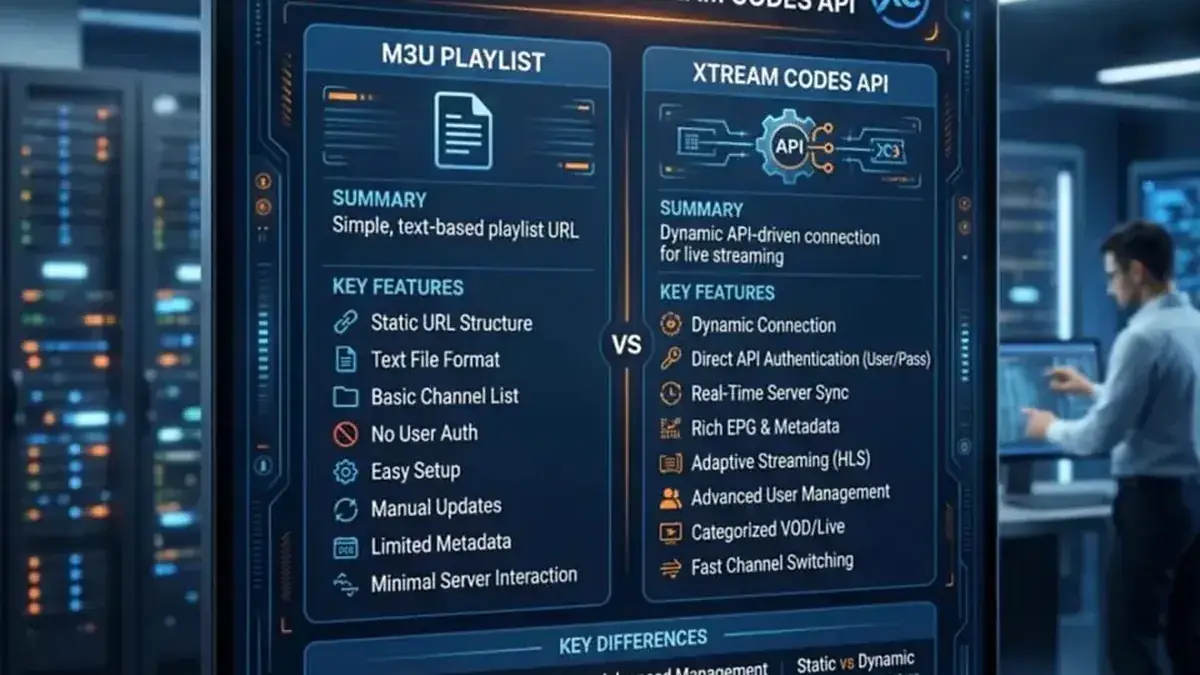
Instant activation — M3U playlist + Xtream Codes login + EPG, delivered by email in minutes. Pay with Bitcoin.
Buy IPTV Subscription